


Screen Mirroring - Cast to TV
4.34.37K Reviews
App Specs
- Version
- 3.13.2
- Updated On
- License
- Free
- Downloads
- 50,000,000+
- Developer
- ZipoApps
- Categories
- Video Players & Editors
- Platform
- Android
Screenshots
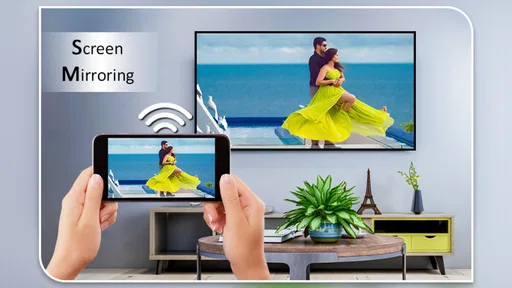
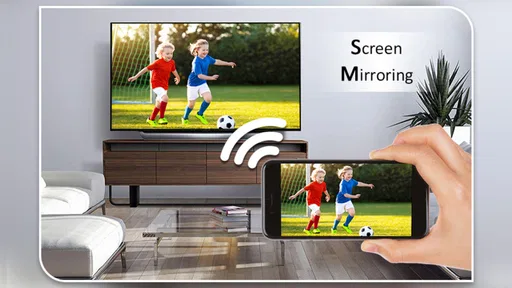
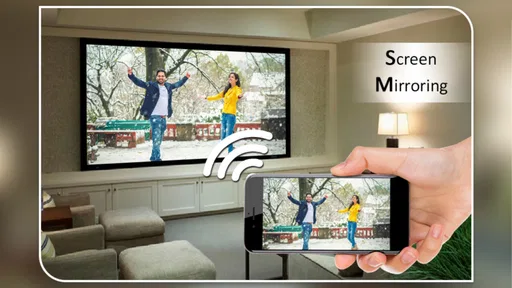
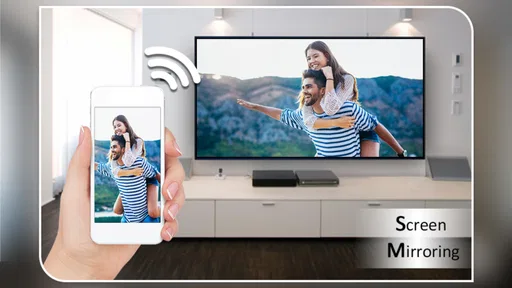
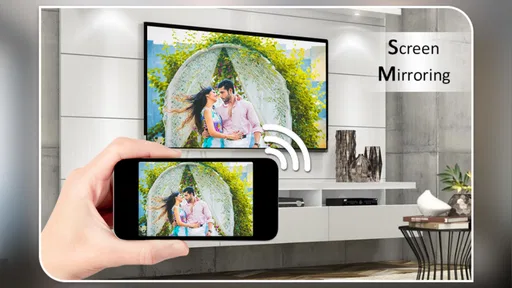
 Analysis by AppCompare
I reach for a screen-mirroring app when I want something on my phone to be easier to see or share, but the experience depends on more than the app itself. The phone, television and network all have to cooperate. Screen Mirroring - Cast to TV is designed to make that connection straightforward, and its appeal is clear: it gives everyday viewing and sharing a simple route from a small screen to a bigger one. I’d consider it most useful when I want to show something already on my phone without turning the moment into a technical project.
When the network is part of the experience
Mirroring is not magic that bypasses the home setup. A device may be compatible and still be hard to reach if the phone and receiver are not connected in a way the app can discover. I’d start by checking that both are on the intended network, then reopen the app and look for the receiver again. That small routine is more useful than repeatedly tapping a device that has not appeared.
Network quality also affects how pleasant it feels to watch or demonstrate something. A connection that is fine for browsing may feel less dependable when a moving image is being shown on another screen. If a video stutters, I’d first try moving closer to the router or reducing competing network activity before assuming the phone or TV is at fault. Mirroring asks the local setup to do work continuously, so a brief test before a presentation or movie can save frustration.
Useful in different rooms and routines
The best fit is not limited to living-room entertainment. I can imagine using it to show a relative a set of photos without passing a phone around, to make a recipe easier to follow from across the kitchen, or to put a phone-based presentation where a small group can see it. Those are simple jobs, but they are exactly where an easy connection matters: the less time spent configuring devices, the more attention stays on the thing being shared.
For a casual evening, I’d choose a clip or other short item first and confirm that the picture and sound behave as expected. That gives me a quick check before committing to a longer video. For a work or school setting, I’d test the destination screen before people arrive and keep the original phone nearby; it remains the source, so incoming calls, alerts or accidental taps can interrupt the flow. A focused presentation is better served by silencing distractions and preparing the material in advance.
What to do when a cast fails
A missing device does not automatically mean the app is broken. I’d check the network, make sure the receiving screen is awake and ready, and then try discovery again. If the connection starts but does not remain steady, I’d simplify the setup: bring the phone nearer to the router, close heavy network activity on other devices if possible, and test with a less demanding item. Changing one thing at a time makes it easier to identify where the trouble lies.
There is also a useful distinction between mirroring the whole phone screen and sending a particular video through a service’s own casting controls. A TV’s built-in options or a dedicated receiver may be the better route for a long viewing session, especially if you do not need to show notifications, menus or anything else on the phone. Screen mirroring is more flexible for mixed content, but that flexibility means the phone stays involved throughout.
Worth Reading Before You Choose

Flipboard Shows What News Apps Must Do Beyond the Feed

Switching to Android Auto Means Rethinking Your Driving Routine

Google Calendar Makes a Crowded Week Easier to Manage

Ludo King Makes the Most of the Minutes Between Plans

Baby Panda World Brings Quick Play to Modern Phones, but Its Game Library Feels Busy

ESPN’s Live Game View Makes Following Close Games Easier
Keeping the session practical
Because the app mirrors content from a phone to another display, I would think about what else might appear on that screen. Before sharing photos, a document or a browser page, close unrelated material and consider whether a notification could reveal something private. For family viewing, this is a small but worthwhile habit; for a meeting, it is part of preparing the presentation rather than an optional extra.
Long sessions can also make the phone less convenient to use for other things. I’d begin with a charged device and avoid depending on the same phone for urgent calls or navigation while it is busy mirroring. If the goal is simply to watch a supported streaming service, the TV’s own app may be less demanding on the phone and easier to control. If the goal is to share whatever is currently on the phone, mirroring is the more direct tool.
For data-conscious use, the important question is whether the content is already available on the phone or is being fetched online while it is mirrored. Casting a screen does not by itself tell me how much mobile data a video service will use; that depends on the content and connection being used. When I want to avoid surprises, I’d use a trusted Wi-Fi network and check the streaming app’s own data settings rather than assuming the mirroring app controls them.
Getting Started with Screen Mirroring - Cast to TV
First things first, the app is incredibly easy to set up. I was a bit skeptical at first because, let’s face it, some screen mirroring apps can be a nightmare to configure. But with Screen Mirroring - Cast to TV, it was as simple as downloading, installing, and tapping a few buttons. The app automatically detects available devices in your network, and with a single tap, you're all set to start casting.
The interface is clean and user-friendly. I love that they haven't cluttered it with unnecessary features. Everything you need is right there on the main screen, which is perfect for someone who just wants to get things done without a hassle.
Performance and Features
Now, onto the good stuff—performance. I tested the app on both Android and iOS devices, and I have to say, the performance was consistent across platforms. There was minimal lag, and the image quality was sharp and clear. Whether it was streaming a movie or mirroring a game, the app held its ground pretty well.
One feature that stood out to me was the app’s ability to adjust the screen resolution and bitrate. Not only does this help in maintaining a stable connection, but it also ensures that the quality of the content being streamed is top-notch. I found this particularly useful when my Wi-Fi was a bit dodgy.
The app also supports a wide range of devices. From smart TVs to Chromecast, Fire TV, and even some gaming consoles, it’s pretty exhaustive in what it can connect to. This flexibility means you’re not restricted to one type of device, which is great if you have a mixed-tech environment at home.
User Experience
Using Screen Mirroring - Cast to TV feels like a breeze. I appreciate the app’s stability; it rarely crashes or freezes, which is more than I can say for some other apps I’ve tried. The developers have clearly put a lot of thought into making sure that the user experience is as smooth as possible.
Another aspect that’s worth mentioning is the app’s support and updates. They seem to be really on top of any bugs or issues that arise, which is reassuring. Plus, there’s a handy FAQ section within the app that answers most common queries, saving you from having to dig around online for answers.
Choosing the right way to share
In the wider video-player and screen-sharing category, this app sits between a TV’s built-in streaming apps and a dedicated casting device. Built-in apps are often the simpler choice for watching a service for hours, because the TV handles playback directly. A dedicated receiver can also be convenient if it is already set up and you want a predictable destination. Screen mirroring earns its place when the item you want to show is on the phone and does not have an obvious TV app or individual cast control.
That distinction helps set expectations. I would not choose mirroring just because it sounds like the most universal option; I’d choose it when showing the phone itself is the point. A photo album, a web page, or a screen that changes as I navigate is a better match than a long film I could start directly on the television. It is also less suitable when precise, immediate game controls matter, since any delay between the phone and display can make a game feel less responsive than playing on the device itself.
A practical example: if friends are visiting and I want to share travel pictures, mirroring lets me move through the collection on my phone while everyone watches the larger screen. Before they arrive, I’d connect once, check that the images appear correctly, and close personal apps that I do not want to show. For a movie night, I’d compare that workflow with opening the service on the TV. The better option is whichever keeps the phone free and the playback steady.
Who will get the most from it
I’d recommend it to people who often share phone content with family, use a TV as a larger display for informal demonstrations, or have more than one kind of receiving device at home. Its simple starting point is appealing if you do not want to learn a complicated setup just to show a few pictures. The developer is ZipoApps, and the app is free to install, so it is easy to try before deciding whether it fits your routine. It is rated for Everyone, with a 4.3 average from around 285,000 ratings and over 50 million installs.
There are sensible reasons to skip it, too. If you mostly watch subscription video, prefer not to keep your phone occupied, or need a presentation connection that must work regardless of the room’s network, a TV app, a wired display connection or a dedicated presentation setup may be a better fit. The right alternative depends on the job: direct playback reduces phone involvement, while a cable can avoid some wireless discovery problems but requires compatible hardware and a physical connection.
On the app side, I’d treat resolution and bitrate controls as tools for balancing clarity against a connection that is struggling, not as guarantees that every network will become smooth. If the picture is unstable, lowering the demand may help; if the network is already strong, changing settings may offer little benefit. I would test these controls before an important use rather than experimenting in front of an audience. That small trial also shows whether the receiving device is a comfortable match for the content.
Practical details before installing
The current version is 3.13.2, and it runs on Android 5.0 or later. In-app purchases range from $0.99 to $149.99 per item, so although downloading is free, I’d check the purchase screen carefully before confirming anything. The headline price is not the whole cost picture if you decide to use paid options, and there is no need to buy anything just to understand whether the basic connection suits your devices.
One question people often have is whether they need a particular brand of TV. The app’s broad device support makes it useful across a mixed setup, but the practical test is whether the receiving device is discoverable and ready on the network. If it does not show up, I’d verify its own screen-mirroring or receiver mode before reinstalling the app. Device compatibility is a combination of the app and the TV or receiver, not just a name on a list.
Another common concern is whether the app replaces a TV remote or streaming service. I would not approach it that way: its role is to put phone content on a larger display. The phone remains the place where I choose what to show, while the TV is the viewing surface. That makes it flexible, but also means the phone’s screen state and network conditions remain relevant during use.
Final Thoughts
So, is Screen Mirroring - Cast to TV worth downloading? I’d say absolutely. It’s intuitive, reliable, and packed with features that make screen mirroring a breeze. Whether you’re a tech newbie or a seasoned pro, this app manages to cater to everyone’s needs.
If you’re looking for a stress-free way to cast your screen to a TV, give it a shot. You might just find it becomes one of those go-to apps you wonder how you ever lived without.
My verdict is positive, with one clear condition: use it for the jobs where showing the phone is genuinely more useful than playing content directly on the TV. A quick network check, a little privacy preparation and a short test are usually worthwhile, especially when other people are waiting. For that kind of casual sharing, it is a handy option; for uninterrupted long-form viewing or a mission-critical presentation, I’d choose the playback or connection method that removes the most uncertainty.
Pros
- Easy to set up with a user-friendly interface.
- Compatible with most smart TVs and devices.
- Supports HD streaming for clearer visuals.
- No noticeable lag during mirroring sessions.
- Works well with a variety of media formats.
Cons
- Requires stable Wi-Fi for optimal performance.
- Some features locked behind a paywall.
- Occasional disconnection issues reported.
- Ads can be intrusive in the free version.
- Limited support for older devices.
FAQs for Screen Mirroring - Cast to TV
What devices are compatible with Screen Mirroring - Cast to TV?
Screen Mirroring - Cast to TV is compatible with most Android and iOS devices. It works seamlessly with popular TV brands such as Samsung, LG, and Sony, among others, that support casting technologies like Chromecast or DLNA. Ensure your TV and device are connected to the same Wi-Fi network for optimal performance.
How do I set up Screen Mirroring on my device?
To set up Screen Mirroring - Cast to TV, first download and install the app from the Google Play Store or Apple App Store. Open the app and ensure your phone and TV are connected to the same Wi-Fi network. Follow the on-screen instructions to connect to your TV, and start mirroring your screen.
Is there a delay when mirroring my screen to the TV?
While Screen Mirroring - Cast to TV is designed to minimize lag, a slight delay might occur depending on your Wi-Fi network's strength and stability. For the best experience, ensure a strong and stable Wi-Fi connection and close unnecessary background applications on your device.
Does Screen Mirroring - Cast to TV support audio casting?
Yes, Screen Mirroring - Cast to TV supports audio casting along with video. This allows you to enjoy a complete multimedia experience, streaming both video and audio content from your device to your TV. Make sure the volume is turned up on both your device and TV for optimal sound quality.
Are there any in-app purchases or subscriptions required?
Screen Mirroring - Cast to TV offers a basic free version with essential features. However, for an ad-free experience and access to premium features, there may be in-app purchases or subscription options available. Check the app's store listing for detailed pricing and feature information.


